

How to Download and Play a Custom Tesla Light Show: A Step-by-Step Guide
The Tesla Light Show is one of the coolest features of the brand, turning your car into a mobile stage of light and music. With thousands of unique sequences available online, you can make your Tesla a star in any parking lot. This comprehensive guide will walk you through everything you need to know, from finding the right files to getting the show started. Let's turn your Tesla into the ultimate party machine.
What You'll Need
Before you begin, make sure you have the right tools. Don't worry, it's a short list.
- A Compatible Tesla Vehicle: The Light Show feature is available on a wide range of Tesla models. This includes all Model 3, Model Y, and 2021+ Model S and Model X vehicles. Your car must also be running software version V11 or newer.
- A USB Flash Drive: A simple, reliable USB drive is all you need. The most crucial part is its file format. It must be formatted to exFAT, FAT32, or MS-DOS FAT to be compatible with your Tesla.
- The Light Show File: This is the heart of the operation. A custom light show consists of two parts: a sequence file (.fseq) and an audio file (.mp3 or .wav).
Official Resources & Download Addresses
You can find the essential software and official files to get started from these authoritative sources:
- Official Tesla Light Show Project: This Tesla GitHub page is the official source for the necessary project files and documentation.
- xLights Software: This is the free, open-source software used to create light shows. Download it from the official xLights website.
Finding and Downloading Your First Light Show
The Tesla community has created a massive library of light shows for you to choose from. The best place to start is often a dedicated community website.
- Browse the Library: Navigate to a community site like TeslaLightShare and browse the collection. You can often search for your favorite songs, artists, or even specific themes like "Christmas" or "Halloween."
- Download the Files: When you find a show you like, download the package. A complete package will always contain both the .fseq file and the audio file.
- Check for a Matching Name: For a show to work, the .fseq file and the audio file must have the exact same name (e.g.,
StarWars.fseqandStarWars.mp3). This is a common pitfall, so double-check before moving on.
Preparing Your USB Drive: The Most Important Step
This is where many people get stuck, but following these steps precisely will ensure everything works perfectly.
Step 1: Format the USB Drive
You need to make sure your USB drive is formatted correctly.
- On Windows: Plug in the USB drive, right-click on it, and select "Format." Choose exFAT.
- On Mac: Plug in the USB drive, open "Disk Utility," select your drive, and click "Erase." Choose ExFAT.
Step 2: Create the LightShow Folder
After formatting, create a new folder on the root directory of your USB drive. This folder must be named exactly LightShow with a capital 'L' and a capital 'S'.
Step 3: Move the Files
Drag and drop both the .fseq file and its corresponding audio file into the LightShow folder you just created.
Step 4: The Naming Convention
You can now have multiple shows on a single drive. Simply ensure that for each light show, the .fseq and audio file pair have the same name. For example, your LightShow folder can contain:
-
jinglebells.fseq&jinglebells.mp3 -
StarWarsTheme.fseq&StarWarsTheme.wav
Playing the Show in Your Tesla
You're almost there! Now it's time to bring your creation to life.
- Plug it in: Insert the prepared USB drive into one of your Tesla’s USB ports, typically the one in the glovebox.
- Navigate to the Toybox: On your Tesla's main screen, tap the "Toybox" icon.
- Select Light Show: Tap on the "Light Show" feature. Your car should automatically detect the files.
- Choose Your Show: A dropdown menu will appear, allowing you to select the custom show by its name.
- Confirm and Play: Press the "Play" button. A timer will appear, giving you time to exit the vehicle safely.
Crucial Step: Once the countdown starts, get out of the car and close all doors and the trunk. The show will not begin unless all doors are securely closed.
To see a full video walkthrough of this process, watch this Tesla Light Show USB Guide:
Troubleshooting and Next Steps
If the "Custom USB Show" option doesn't appear, here are a few things to check:
- Is the drive using exFAT or FAT32?
- Is the folder name spelled right? It must be
LightShow. - Do the file names match?
- Is the USB plugged into the correct port?
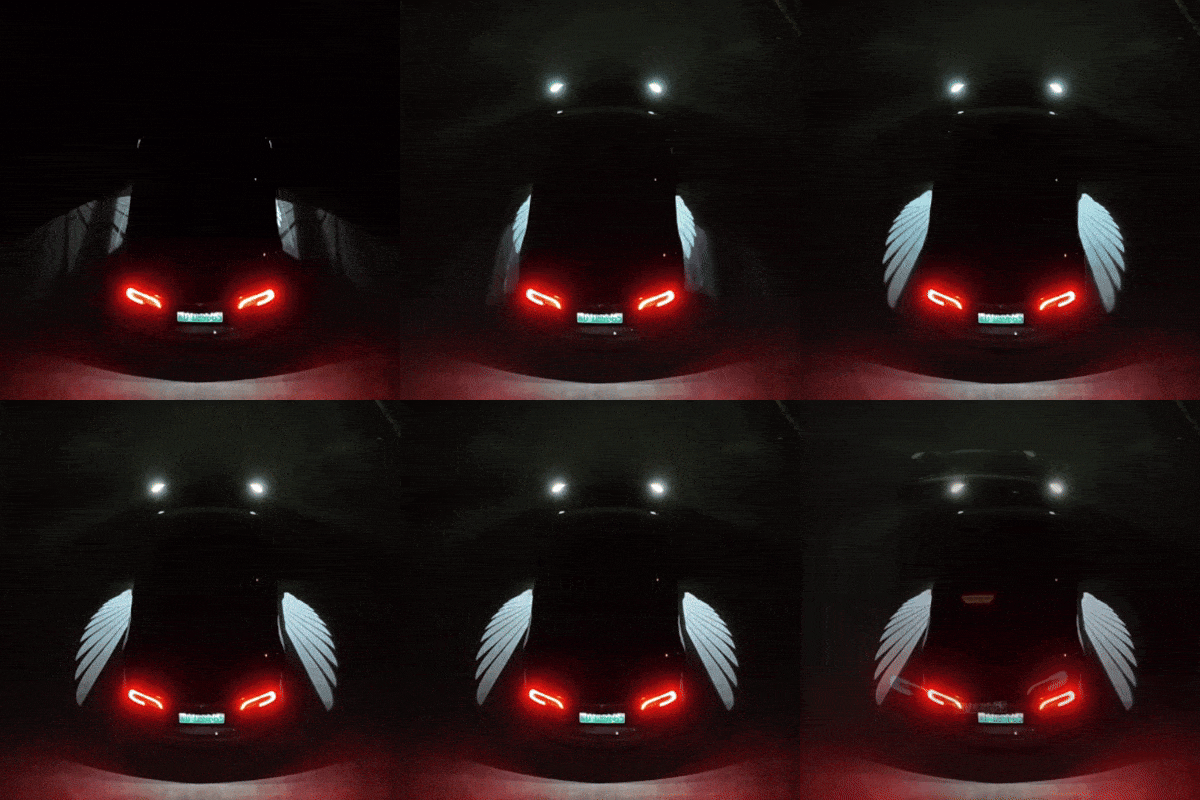
Take Your Light Show to the Next Level
Playing a custom show is a fantastic way to impress your friends and family. To truly unlock the full potential of a light show, upgrade your vehicle's lighting.
Find The Perfect Accessories


